
The Health Check & Troubleshooting plugin is commonly used WordPress utility plugin designed with the goal of evaluating the health of your WordPress blog or website and providing recommendations to optimize it.
According to the WordPress repository, it has been downloaded and installed more than 200,000 times and has a rating of three and a half stars from those who use it. At the time of this evaluation, there were 77 5-star reviews of the plugins, along with 34 1-star reviews, indicating a mix of experiences with the plugin.

The Health Check & Troubleshooting has been installed and activated by quite a few WordPress site owners who are looking for assistance with evaluating their blog or site. Our interest, however, is whether enabling the Health Check & Troubleshooting plugin has any negative speed impacts on your WordPress site. Our goal with this test is to determine whether Health Check & Troubleshooting is a fast WordPress plugin or whether it could potentially cause negative speed impacts on your WordPress blog or website.
The question of “Is the Health Check & Troubleshooting plugin fast or slow” is exactly what our WordPress speed tests are designed to answer.
Our WordPress Plugin Testing Methodology
In order to determine whether the Health Check & Troubleshooting WordPress plugin could potentially slow down your WordPress site, we have designed a process to test the plugin for speed. Our goal is to provide fair and accurate testing that gives us baseline data to compare to.
We feel that first capturing baseline metrics allows us to effectively observe any negative speed impacts that occur when a plugin is installed and activated.
Our testing environment does not use any additional caching plugins or features, beyond what our host provides. We do not use any third-party Content Delivery Networks like Cloudflare and we don’t use any optimization features like script and CSS minification.
Essentially, our sandbox is just a basic WordPress implementation with a lightweight theme.
Establishing The Baseline Sandbox Environment And Content
Our methodology creates a basic WordPress installation using the Twenty Twenty theme for testing purposes. We call this environment our testing sandbox.
With the sandbox environment, we create a single post that uses 800 words of Lorem Ipsum text and three appropriately sized images for the Web. Each of the images is 1920 pixels wide and 1280 pixels high and are resized by the theme to responsively fit the screen. We feel that a post with 800 words, one featured image, and three images accurately represents an “average” blog post that can be found on most WordPress sites.
Again, no lazy loading, image compression, or optimization has been done other than the lazy loading features offered by WordPress.
With the sandbox environment and test post in place, we first baseline the environment for speed to determine how fast the test post loads without the Health Check & Troubleshooting WordPress plugin installed. This baseline gives us the metrics to compare to once we install and activate Health Check & Troubleshooting.
To generate baseline metrics for the sandbox environment, we use multiple tests of three different speed testing tools.
- Google Page Speed Insights – We run the GPSI speed test five times and take the average scores of the five tests in order to determine the average desktop and mobile scores for the baseline testing post before the Health Check & Troubleshooting plugin is installed and configured.
- GTmetrix Speed Test – We run the GTmetrix speed test three times and take the average scores of the three tests in order to determine the average load time, page size, and number of requests for the baseline testing post before the Health Check & Troubleshooting plugin is installed and configured.
- Pingdom Speed Test – We run the Pingdom speed test three times and take the average scores of the three tests in order to determine the average load time, page size, and number of requests for the baseline testing post before the Health Check & Troubleshooting plugin is installed and configured.
With these baseline metrics captured, we have the necessary data to conduct the actual testing of the Health Check & Troubleshooting WordPress plugin.
The baseline data for the environment prior to installing and activating Health Check & Troubleshooting was as follows:
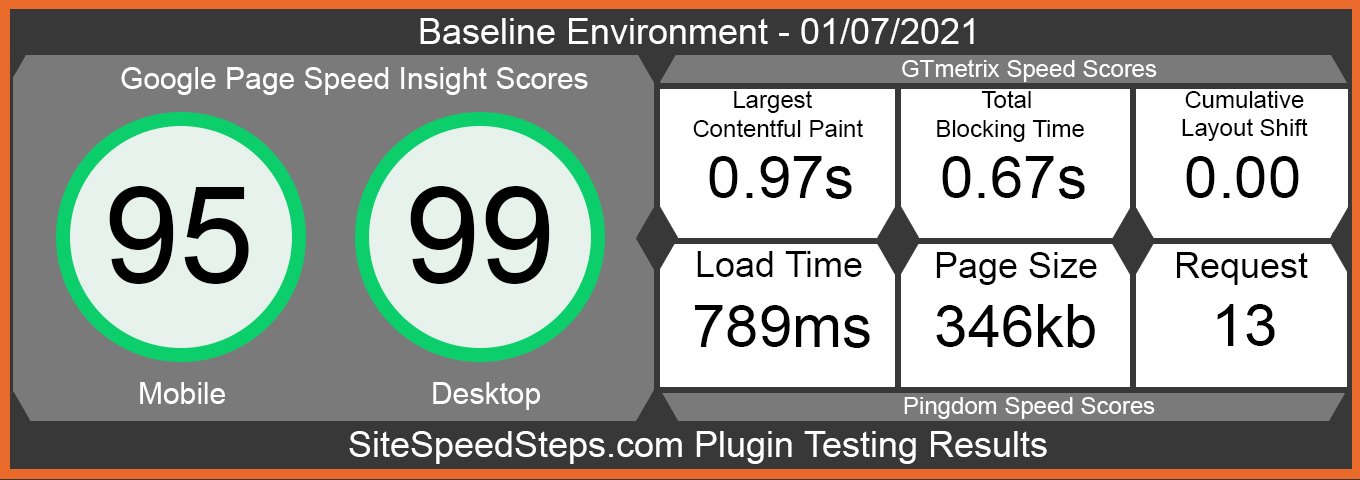
From the results, our sandbox environment was generating near-perfect scores via Google Page Speed Insights for desktop and a average score of 95 on mobile.
Using GTmetrix and Pingdom to test the post, we are able to discern that the page loads at right at .8 seconds and the total page size came in at 346kb.
Essentially, the blog posts loads very quickly across all three tests.
Installing And Activating the Health Check & Troubleshooting Plugin And Testing Any Site Speed Impacts
Once the baseline data has been captured, we proceed on to installing and activating the Health Check & Troubleshooting plugin from the WordPress plugin repository. For testing purposes, we left all the configuration as basic as possible.
Using the same test post we leveraged to gather the baseline data, we followed the exact same data-gathering processes outlined above and gathered the resulting data.
By comparing the post-installation data to the baseline data, we are able to determine whether Health Check & Troubleshooting has any negative speed impact on the testing post.
Results From The Health Check & Troubleshooting Plugin Testing
As seen in the testing results below, the Health Check & Troubleshooting plugin had no negative impact on the Google Page Speed Insights Scores, the GTmetrix web speed test, or the Pingdom web speed test.
This is a good indication that the Health Check & Troubleshooting plugin has a well-written codebase that operates as a lightweight, plugin and can be used without worrying about slowing down your WordPress site. Enabling the plugin will not speed up your WordPress site in any way, but it also will not slow it down.

Observations Regarding The Health Check & Troubleshooting Plugin
Health Check & Troubleshooting can be a useful tool for those WordPress site owners looking to troubleshoot plugin conflicts, identify whether their site has been infected with malware, or identifying a host of other issues. With these testing results, we can also be confident that the plugin is not slowing down our WordPress sites
With respect to the Google Page Speed Insights scores, the Health Check & Troubleshooting results were nearly identical to the baseline tests, indicating that Health Check & Troubleshooting will not negatively hurt your GPSI scores. Similarly, the GTmetrix and Pingdom tests demonstrated that there were virtually no measurable negative impacts caused by installing and activating Health Check & Troubleshooting to identify any issues with your WordPress site.
As a result of our plugin testing, we give Health Check & Troubleshooting the rating of:
 SAFE– This plugin causes no negative site speed impacts to a WordPress site. While it does not speed up your site in any way, it does not appear to slow down page load times or excessively increase the number of requests made by a WordPress site. As a result, installing and using this plugin will likely neither increase or decrease your site performance.
NOTE: While a plugin may not cause negative site speed impacts, there are always possibilities that a plugin could conflict with other plugins or themes. Please test all plugins carefully to ensure that they work properly with your host, WordPress theme, and all other plugins.
To view our testing results sheet, you can download it in PDF format here.
Additional information that might be useful in your evaluation or our test results are as follows:
Test Date: 01-07-2021
Plugin Version Tested: 1.4.5
WordPress Version Used: 5.6
WordPress Theme Used: Twenty Twenty
WordPress Theme Version: 1.5
Hosting Used: Siteground GoGeek
URL Of Test Post: https://sandbox.sitespeedsteps.com/site-speed-steps-testing-post/
Number Of Words In The Test Post: 800
Number Of Images In The Test Post: 3+Featured image
If you have questions about our testing methodology or results, please feel free to reach out via our contact form